Pagsisimula sa GPS-Trace Platform | GPS-Trace

Pagsisimula sa GPS-Trace Platform

Ang guide na ito ay gagabay sa inyo sa mga hakbang para magsimula sa paggamit ng aming platform.
Kaya magsimula na tayo!

Panoorin ang mabilis na video na ito para matuklasan ang mga unang hakbang at pangunahing benepisyo ng aming system, na tutulong sa inyong magsimula kaagad

1

Mag-register sa Admin Panel

Ang admin panel ay ang inyong central management hub para sa paggawa at pag-manage ng accounts sa lahat ng GPS-Trace solutions.

Simple lang ang registration:

  1. Bisitahin ang registration page.
  2. I-click ang Sign up button.
  3. Punan ang required fields.
  4. I-confirm ang inyong email.

Yun lang! May access na kayo sa platform.

Ano ang binibigay sa inyo ng admin panel ng platform:

  • Check Icon Gumawa ng accounts at units sa kahit anong solution sa GPS-Trace platform.
  • Check Icon I-configure ang plans, kaya naman ma-manage ang application functionality.
  • Check Icon I-customize ang branding gamit ang inyong logo at colors.
  • Check Icon Makakuha ng tulong sa built-in 24/7 AI assistant, documentation, at FAQ.
  • Check Icon Gamitin ang Platform API para sa advanced integrations.
Check Icon

Para sa Service Providers

  • Check Icon Payment collection tools (Stripe/PayPal).
  • Check Icon Remote technical support capabilities.
  • Check Icon Autoblocking ng users para sa non-payment.
  • Check Icon Dealer map listing at profile display sa customer application.
2

I-activate ang 30-Day Trial

Pagkatapos ng registration, i-activate ang inyong Trial period direkta sa Admin Panel para ma-explore ang buong functionality ng platform nang walang bayad.

Important Note

Ano ang pwedeng i-test sa Trial:

  • Check Icon 2 accounts na may access sa Forguard application (hanggang 30 units sa bawat isa)
  • Check Icon 2 accounts na may access sa Tags solution (hanggang 10 assets sa bawat isa)
  • Check Icon Pag-configure ng plans na may iba't ibang features at limits
  • Check Icon Core features unlocked - multi-user access, custom branding atbp.
3

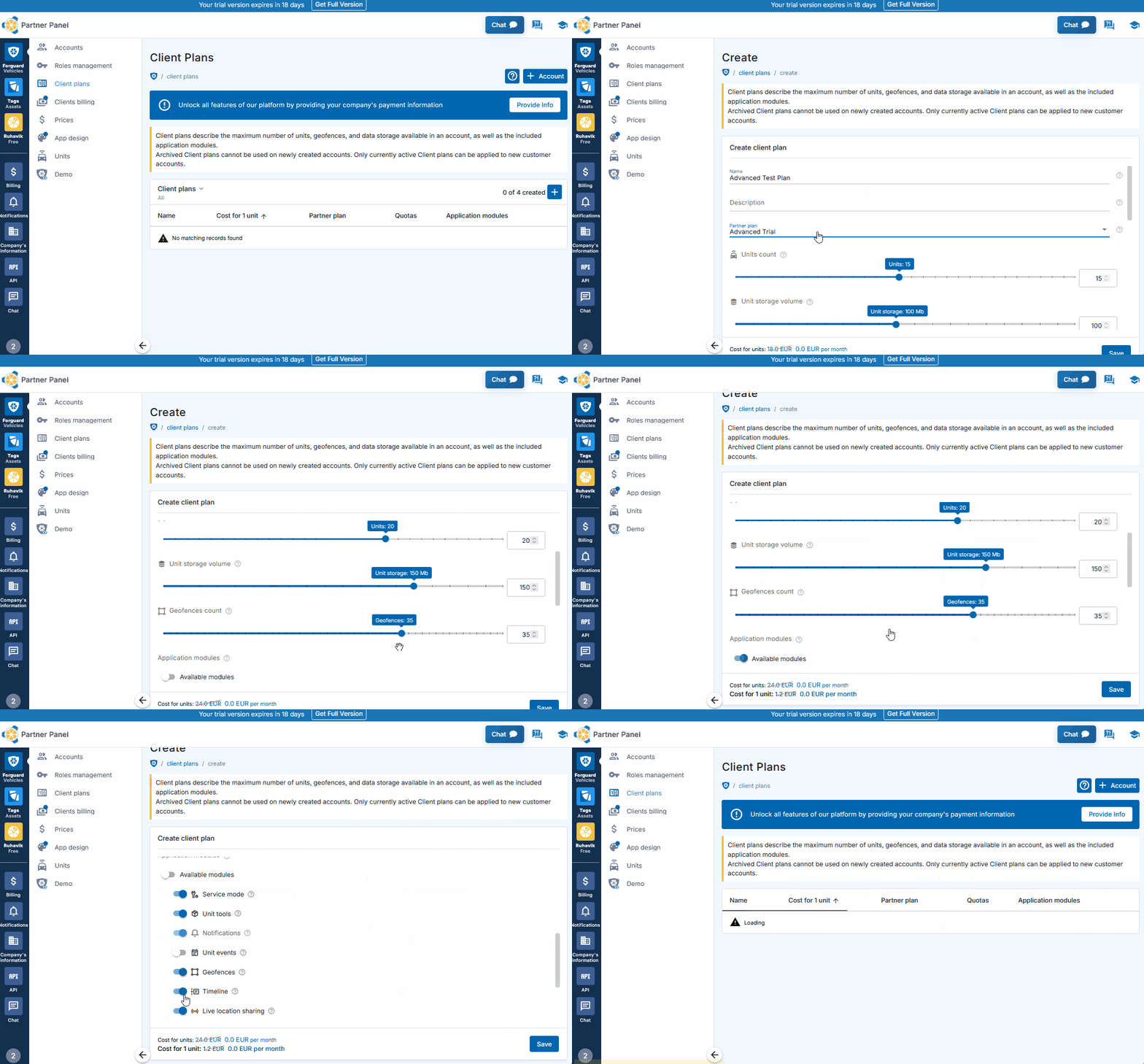
Gumawa ng Plan

Ang GPS-Trace Platform ay nag-connect sa inyo sa dalawang tracking solutions: Forguard at Tags.

Bago gumawa ng account na may access sa Forguard o Tags, kailangan ninyong mag-set up ng Client Plan - isang configuration na nagde-define kung anong features ang magiging available at anong limits ang ma-apply.

Ang Client Plans ay naka-base sa Partner Plans na binibigay ng GPS-Trace. Pwedeng tingnan ang lahat ng available Partner Plans at ang kanilang pricing dito.

Paggawa ng Inyong Unang Plan

  1. Pumunta sa Forguard o Tags section sa admin panel
  2. Pumunta sa Client Plans tab
  3. I-click ang "+" button para gumawa ng bagong plan
  4. I-set ang maximum limits (units, geofences, history period)
  5. Piliin ang features na ie-enable
  6. I-save ang inyong plan
Create Account
Check Icon

Para sa Service Providers

Ang Client Plans ay nagpapahintulot sa service providers na gumawa ng iba't ibang service packages na may iba't ibang features at price points. Pwedeng mag-offer ang mga dealers ng tiered options (Basic, Professional, Enterprise at iba pa) sa iba't ibang customer segments at mag-set ng sariling pricing.
Ang profit margin ay ang pagkakaiba sa pagitan ng sinsingil ng dealers sa kanilang clients at binabayad nila sa GPS-Trace.

4

Gumawa ng Account

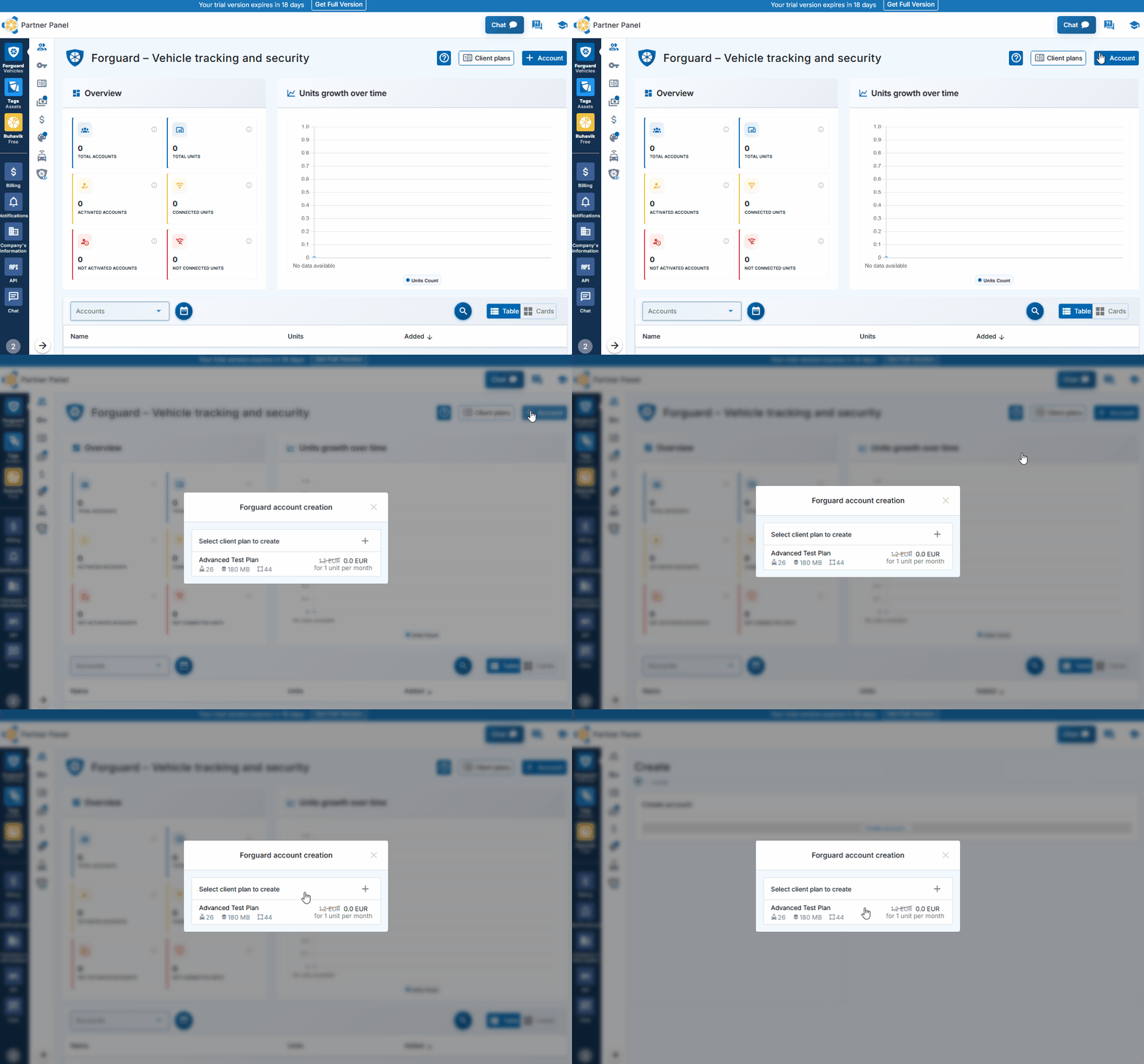
Ngayong may Client Plan na kayong ready, panahon na para gumawa ng account na magbibigay ng access sa application (Forguard o Tags).

Paggawa ng Account

  1. Pumunta sa Forguard o Tags tab sa admin panel
  2. I-click ang blue "+" button sa Accounts section
  3. Piliin ang dati nang ginawang Client Plan sa dropdown menu.
  4. I-click ang 'Save' button.
Create Account

Tapos na! Agad nang nagawa ang account.

Para magsimulang gamitin ang application, i-activate ang account sa pamamagitan ng pag-set ng login credentials gamit ang activation link o QR code. Pwede ninyong gawin ito (kung para sa sariling business) o i-share sa client para sa kanilang activation.

Important Note

Multi-User Access at Permissions

Ang platform ay sumusuporta sa multi-user access sa applications na may permission management. Pwedeng gumawa ng additional users direkta sa Admin Panel na may customized access levels.

Dalawang tools ang tumutulong sa pag-organize ng team access:
Roles - nagde-define kung anong features ang ma-access ng users (notifications, reports, geofences, commands) at anong actions ang pwedeng gawin (view, create, edit, delete)
Access Lists - nag-control kung anong specific devices (units) ang makikita ng bawat user, useful para sa paghihiwalay ng access ayon sa teams, regions, o vehicle types.
5

Gumawa ng Unit

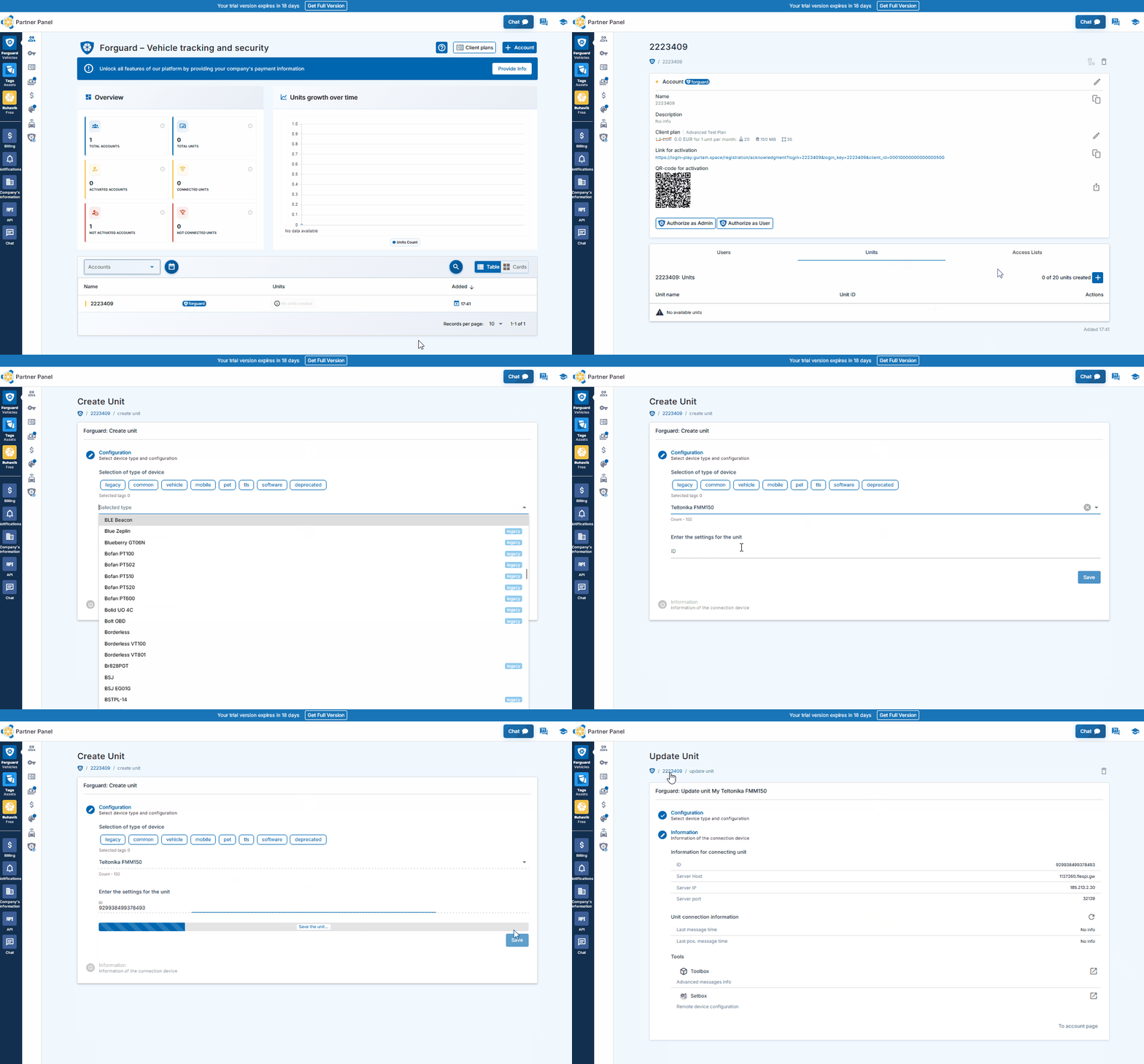
Ang units ay ang physical na GPS trackers o gateways na nangongolekta at nagpapadala ng data sa platform. Walang units, walang devices ang account na ma-track. Ang paggawa ng units ay nag-connect ng inyong hardware sa system.

Paggawa ng Units sa Forguard

  1. Piliin ang account na gusto ninyong pagdadagdagan ng unit
  2. I-click ang "+" icon sa Units section
  3. Piliin ang model ng inyong GPS device (tracker) sa list.
  4. I-enter ang device details (IMEI, password kung kailangan)
  5. I-click ang 'Save' button

Kung properly configured ang inyong device at nagpapadala ng data, makikita ninyo ito online sa loob ng ilang minuto.

Create Unit
Important Note

Gateways at Assets sa Tags

Ang Tags ay gumagana sa dalawang uri ng entities:

  • Check Icon Gateways - GPS trackers na nag-detect ng BLE sensors at nagpapadala ng data
  • Check Icon Assets - Items na nita-track (BLE tags, wired sensors, o parameters mula sa gateways)

Ang paggawa ng gateways ay sumusunod sa parehong proseso tulad ng paggawa ng Forguard units (mga hakbang sa itaas).

Paggawa ng Assets sa Tags

  1. mag-login sa Tags
  2. Pumunta sa Gateway's page para makita ang detected BLE devices
  3. I-click ang "+" sa tabi ng unlinked devices para gumawa ng assets
  4. O gumawa ng assets mula sa gateway parameters gamit ang Telemetry data tab
6

Pumirma ng Offer Agreement

Kapag handa na kayong magpatuloy sa paggamit ng platform beyond sa trial period, pumirma ng Offer Agreement.

  1. Pumunta sa Company's Payment Information section
  2. Punan ang kailangang details at i-upload ang verification documents (company registration certificate o business entity registration document)
  3. I-submit para sa verification
  4. Kapag na-approve na, basahin at tanggapin ang Offer Agreement

Yun lang! Kayo na ngayon ay fully authorized user na may complete access sa platform.

Check Icon

Para sa Service Providers

Pagkatapos pumirma ng Offer Agreement at makumpleto ang verification, ma-unlock ng service providers ang advanced business tools:

  • Check Icon Client billing - PayPal at Stripe integration na may payment link generation at automated customer invoicing
  • Check Icon Automatic account blocking - kakayahang mag-set ng blocking date para sa clients
  • Check Icon Advanced custom branding - sariling domain (CNAME) at application name
  • Check Icon Draft units - pre-creation ng units nang walang billing charges hanggang sa ma-assign sa client accounts

FAQ

To track location, you need:

  1. A tracker integrated on our platform with a SIM card.
  2. One of the GPS-Trace solutions: Ruhavik, Petovik, or Forguard.

You can either:

  • Use the solution independently by purchasing and setting up the tracker yourself,
    or
  • Contact a dealer for a complete solution, which includes the tracker, setup and installation, SIM card, and other related services.

You can find a dealer near you using the Dealer Map.

More details about getting started.
List of integrated integrated devices.
Please note that this list does not include about 500+ device types from the legacy category.
The full list of integrated devices can be seen in the device type line when creating a unit in the application.


Blog articles:
Discover the Power of GPS Tracking with GPS-Trace: Your Ultimate Guide

In order to see your tracker on the map, you need to:
1. Create an account and log into it.
2. Create a unit.
3. Set up a tracker:
- direct your device to the server and port specified on the Hardware tab in the Unit settings;
- set time zone UTC 0;
- configure the APN (depending on the provider of the SIM cards, this may be just the APN or also the APN username and password).

As soon as the tracker starts sending data to our system, you will see your unit on the map.

More details about registration.

Most trackers are configured using SMS commands that are sent to the SIM card used in the tracker.
The list of SMS commands can be found in the instructions for the tracker. Some devices are configured using special programs - configurators - via a PC.

Instructions for the most popular trackers.

The tracking of one unit (car, motorcycle, bicycle, pet, etc.) is free.
With a paid subscription, up to 30 units can be created in one account.

What you can do: 
1. Try to remember if your tracker is used in an account created with another email. To restore access to another account, if you remember this email, you can use the "Forgot password?"
You can also write to us at support@gps-trace.com, specifying the ID/IMEI and type (model) of the tracker, and we will be able to check if the tracker is used in another account.

2. If the tracker is already registered in another account, and you cannot restore access to it, write to us at support@gps-trace.com with the ID / IMEI, type (model) of the tracker and attach a photo of the tracker, we will describe the next steps to solve the problem.


1. To select the most suitable tracker, you can contact one of our dealers. You can find a dealer on the Dealer map.
2. Our website has a list of devices integrated into our platform. To select a suitable tracker, you can use the appropriate hashtags: #vehicle #mobile #common #pet. And also see which trackers are the most popular on our platform in general or in your region.

List of integrated devices.
Please note that this list does not include about 500+ device types from the legacy category.
The full list of integrated devices can be seen in the device type line when creating a unit in the application.

Many trackers have different names but work on the same protocols. Accordingly, when connecting a device that is not in the list of integrated ones, you can try to select another type of device from the integrated ones. In this case, we recommend focusing on the protocol used by the tracker as well as SMS commands that your tracker understands and responds to.

If you are unable to select the type of device yourself, please contact us at support@gps-trace.com and write us your login/email, type, model, tracker manufacturer, and attach a photo of the tracker, instructions for it and a screenshot of the device configuration (SMS commands and device's answers), we will try to help you.

Blog articles:
Connecting Clones and Non-Integrated GPS Devices: Practical Tips 

You can turn a mobile phone into a tracker using specialized applications.
We suggest using WiaTag or Traccar Client applications for this purpose.

Blog articles:
1. Using a Mobile Phone for Tracking with Ruhavik 
2. How to use your phone as a tracker. Ruhavik & Traccar Client 
3. How to use your phone as a tracker. Ruhavik & WiaTag

The tracker may not work for a variety of reasons.

Most frequent:

1) The problem is on the side of the mobile operator (SIM card).
2) Lack of balance or traffic limit on the SIM card.
3) The device is in a shielded room and therefore there is no communication.
4) Incorrect or lost tracker settings (for example, the tracker has gone into sleep mode or is configured to send messages infrequently).
5) The tracker does not have enough charge and it stores data in a black box until it is connected to a power source.

In this situation, we recommend:

1. Check the traffic limit and the balance of the SIM card used in the tracker. It happens that there is money on the SIM card, for example, but the entire traffic limit has already been used up.

2. Check your tracker settings and message frequency. Sometimes the tracker goes into sleep mode and, accordingly, does not send data about the tracker's location.

3. Check the correct installation of the tracker. Perhaps it is installed in a place (in a shielded box) that does not allow it to see the satellites well.

4. Make sure that the tracker is not located in a shielded area (covered parking, tunnel, building, etc.), which also makes it difficult for the tracker to receive coordinates from the satellite.

Blog articles:
Why GPS trackers may not work

The application has a Sharing option, which is designed to share the location of your unit with others using a special link.
Using the Sharing option, you can create such links for each unit for up to 1 year. It is also possible to create a link to access multiple units.
Sharing option is only available with a paid subscription.

More details about Sharing.

Blog articles:
1. Use the Sharing option and stay in touch!
2. Updates in Ruhavik: Engine Hour Counters, Multiple Unit Sharing, and Track Tail
3. Petovik's Update: Introducing Sharing Option

To recover your password, you need to do the following:
1. When you enter the application, use the ""Forgot password?"" function, after which an email with a link to reset your password will be sent to the email associated with your account.
2. Follow the link in the email and create a new password.
3. Return to the login page and enter your username and new password.

To change your email address, you can do the following:
1. Go to the user settings by clicking on the three vertical dots in the upper right corner.
2. In the email line, click the pencil icon, a window for changing the address will open.
3. Enter your new email address and current password.
4. In the email that will be sent to your new email address, click on the link to confirm the change of email address.

There are two ways to change your password:
1) Function "Forgot password?"
1. On the account login page, click "Forgot password?", after which an email with a link to reset your password will be sent to the email associated with your account.
2. Follow the link in the email and create a new password.
3. Return to the login page and enter your username and new password.

2) Changing the password in the user settings:
1. Go to the user settings by clicking on the three vertical dots in the upper right corner.
2. In the password bar, click the pencil icon; a window for changing the password will open.
3. Enter the current password as well as the new password and repeat it.

More details about user settings.

In case you do not have access to your account and the email address to which the account is registered, write to us at support@gps-trace.com with the IMEI / ID, type (model) and manufacturer of your tracker, and we will describe the necessary steps to solve the problem.

In case your tracker was offline for some reason, it could accumulate GPS data in memory and, after reconnecting, start uploading this data into our system.

Thus, the time difference is formed:
1. time when the tracker received data from satellites;
2. the time when the data was sent to the system by the tracker.

Thus, so-called messages from the past come into the system.
In the Toolbox, such messages are grayed out. Toolbox is only available with a paid subscription.

More details about Toolbox. 

The storage is designed to store data that comes from the tracker into our system.

After the entire amount of storage provided by your tariff plan is completely filled, new data from the tracker will overwrite the oldest ones. The application itself will continue to work as usual and will display the current location of the tracker.

The maximum storage period for data transmitted from the tracker is 365 days.

In the Statistics Paid Subscription tab, the following information is available to users:
- summary mileage information;
- charts by parameters sent by the tracker;
- summary engine hours information (if the tracker sends the engine.ignition.status parameter and the user has a premium subscription);
- export events.

Statistics tab is only available with a paid subscription.
More details about statistics. 

Also, the application collects data on the timeline (all information about the events of the unit: trips, parking, speeding, alarm messages, battery charge, towing, etc.) and on the history of trips (information about the track for a certain day or period of time).
Timeline tab is only available with a paid subscription.

Blog articles:
1. Mileage and Engine Hours Counters in Ruhavik 
2. Exporting Data from Ruhavik: Detailed Guide

You can export data for the following sections:

Paid Subscription available with a paid subscription.

Blog articles:
1. Exporting Data from Ruhavik: Detailed Guide 
2. Ruhavik Updates: Nautical Measure, Data Export, and Unit Grouping on the Map

The application offers Simple, Customizable and Parameter notifications.

The simple Paid Subscription ones are notifications:
- by geofences;
- by alarm messages from your device;
- on trips;
- for towing.

The customizable Paid Subscription ones are notifications:
- about exceeding the specified speed by the unit;
- about the battery charge;
- the need to charge the device;
- about the absence of messages from the device.

Parameter Paid Subscription notifications allows you to receive notifications related to the parameters you choose, which are contained in the messages sent by the tracker.
You can receive notifications about fuel, battery, door open/close, alarm activation, and much more.

Paid Subscription available with a paid subscription.

More details about notification types.

Blog articles:
Notifications: Track your vehicle with ease

Notifications can be sent in the following ways:
- in the form of push notifications;
If you have a paid subscription, the following methods are also available:
- by email to the email associated with your account;
- to the Telegram messenger;
- in the form of webhooks to your server.

More details about setting up notifications in Telegram.

Our application is free to track 1 unit.
The free package also includes the use of 1 geofence and 1 MB of storage.

With a paid subscription, users can get additional benefits, the volume and level of which depend on the chosen subscription plan:

  • Up to 30 units per account
  • More data storage (up to 100 MB)
  • Google Maps
  • Advanced notifications and additional delivery methods (email, Telegram, and webhooks)
  • Up to 15 geofences of various shapes, including polygons
  • Unit Tools: Toolbox and SetBox – allow you to remotely configure the operation of GPS devices, view messages from the tracker, connection logs, errors, unit edits, and all raw traffic.
  • Commands Panel – GPRS commands for greater control over your devices (available from the Premium Basic plan and higher).
  • Location Sharing – the ability to share the location of your vehicles with other people using a special link.
  • Timeline – track all unit events for the selected day in chronological order.
  • Statistics – view unit statistics, analyze data with charts, and export summary reports in various formats.
  • Maintenance – monitor the condition of your vehicle and manage its maintenance using mileage and engine hours counters.
  • And more.

You can subscribe via Google Play, App Store, or by paying via PayPal or Stripe directly on the website.
The subscription cost can be viewed in the Subscriptions section of the application or by clicking the Subscribe button in the upper left corner of our website.

More details on our pricing.

We really appreciate the feedback and ratings of our users because they help us develop and grow.


If you have the opportunity and a couple of minutes of time, we will be very grateful if you can rate our application:
- on Google Play;
- on App Store.

We communicate with our users via email.

- If you have any questions about working with Ruhavik, Petovik or Forguard solutions, please contact us at support@gps-trace.com.
You can also post your question on our forum.

- If you want to become a partner and use our tools to build a monitoring business, write to us at business@gurtam.space.
More details our business solutions.